

How to Control File Names for FTP/SFTP Exports in Shopware 6
The following article explains how to use custom names for export files in Shopware 6 when transferring data via FTP/SFTP. We not only explain the functionality behind the new feature of the Improved, Import, Export & Mass Actions app but also describe practical use cases and the benefits Custom FTP/SFTP Export File Name introduces.

Table of contents
- The Story Behind File Names for FTP/SFTP Export in Shopware 6
- Static vs. Dynamic Filenames: Which Strategy Fits Your Workflow?
- How Custom Naming Automation Works
- Step-by-Step: Configuring Custom File Names for FTP
- Why You Need Static Filenames for Integrations
- Conclusion: Automating Your Data Pipeline
- FAQ: Common Questions About FTP Export Naming
The Story Behind File Names for FTP/SFTP Export in Shopware 6
Automating data exports in Shopware 6 presents a challenge: the default platform restricts you to manual file downloads. It does not natively support automated exports to remote servers via FTP or SFTP.
The Improved Import, Export & Mass Actions app bridges this gap, enabling you to send product feeds, stock levels, and other data directly to external servers.
However, connectivity is only half the battle. External systems — like ERPs, BI tools, or supplier portals — often require strict file naming conventions. If your automation sends stock_2025-10-12_1400.csv when the receiving system expects stock.csv, the integration fails.
The Custom FTP/SFTP Export File Name feature gives you full control over how your files are labeled and stored on remote servers. This guide explains how to use this feature to choose between maintaining a historical archive or a single, always-up-to-date file.
Static vs. Dynamic Filenames: Which Strategy Fits Your Workflow?
The Custom FTP/SFTP Export File Name feature controls how the app writes files to your FTP or SFTP server. Depending on your integration needs, you can choose between two distinct naming strategies:
| Strategy | Behavior | File System Result | Best For |
| Dynamic (Default) | Accumulative. Generates a new file with a timestamp for every export. | export_2023-10-01.csv
export_2023-10-02.csv |
Backups, audit trails, and historical analysis. |
| Static (Custom) | Overwrite. Uses a fixed name. The new file replaces the old one. | current_stock.csv (always) | External automation, ERPs, and keeping servers clean. |
How Custom Naming Automation Works
Option A: Dynamic Naming (History Mode)
If you leave the “Custom File Name” field empty, the app uses a dynamic naming logic.
- Logic: The system generates a unique name for every single export run, typically appending the date and time to the filename.
- Storage Impact: No files are ever deleted. If you run the export daily for a year, you will have 365 distinct files on your FTP server.
- Use Case: Perfect for “paper trails.” If you need to prove what your stock level was exactly three weeks ago, you can simply locate and download that specific date’s file.
Option B: Static Naming (Overwrite Mode)
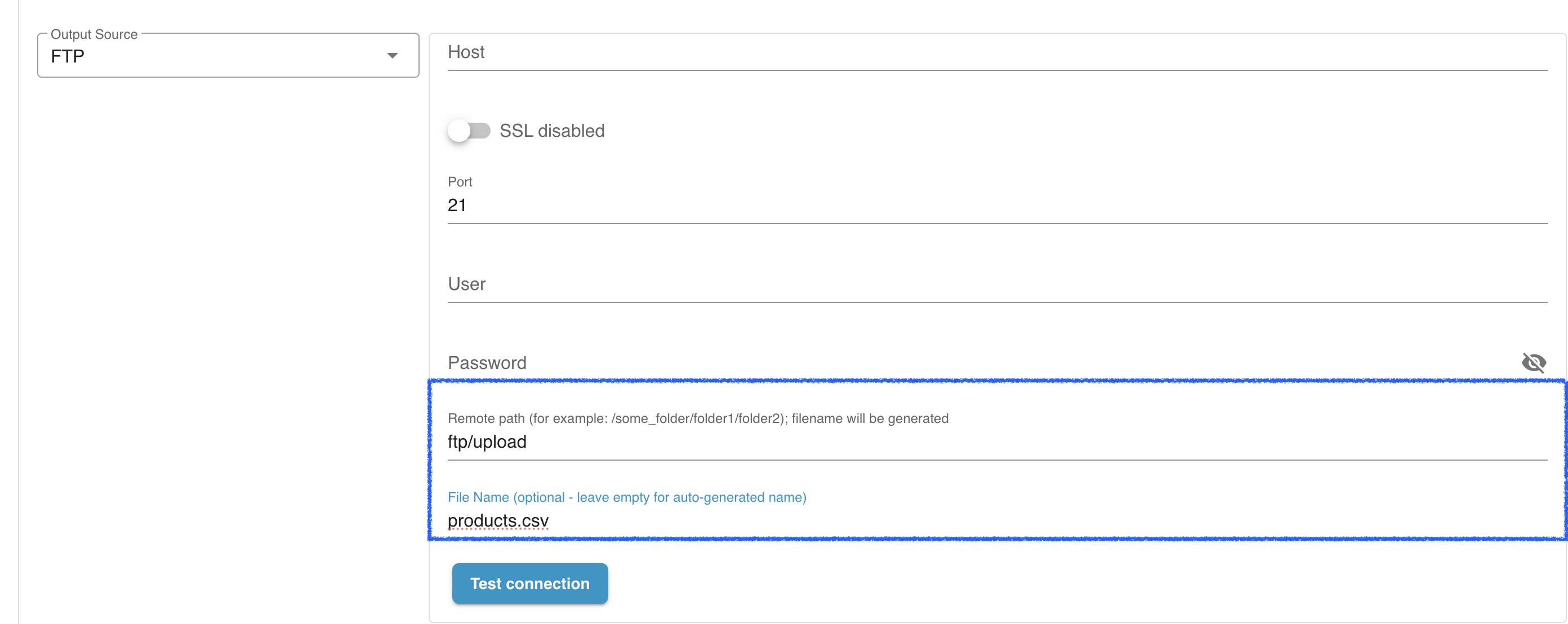
If you enter a specific name in the field, the app switches to “Overwrite” mode.
- Logic: The app uses exactly the name you provide. It does not append dates or times.
- Storage Impact: Every time the export runs, the system looks for the file with that name on the remote server and overwrites it with the new data.
- Use Case: Essential for rigid integrations. If your ERP script is programmed to fetch products_latest.xml every night at 3 AM, this mode ensures that products_latest.xml always contains the freshest data, without your IT team needing to write complex scripts to find the “newest” file in a folder of thousands.
Step-by-Step: Configuring Custom File Names for FTP
Setting this up takes seconds but saves hours of maintenance.
- Open the Improved Import, Export & Mass Actions app.
- Navigate to your Export Job.
- Go to Export Destination → FTP/SFTP Settings.
- Locate the File Name field.
Configuration Rules
- To Enable Overwriting: Enter the full name including the extension.
- Correct: daily_stock.csv, orders.json, feed.xml
- Incorrect: daily_stock (Missing the extension may cause the file to be unreadable by receiving systems).
- To Enable History: Simply delete the text and leave the field empty. The system will revert to auto-generating unique timestamped names immediately.
Why You Need Static Filenames for Integrations
Why should you switch from the default timestamped format to a custom static name?
- Seamless Integration: External tools (like accounting software or supplier portals) no longer need “wildcard” logic to guess the filename. They just read the same file path every time.
- Server Hygiene: Prevents your FTP server from filling up with thousands of obsolete files that waste storage space and clutter your directories.
- Reduced Maintenance: Eliminates the need for manual “clean-up” scripts or cron jobs that delete old files from the server.
Conclusion: Automating Your Data Pipeline
The ability to export to FTP/SFTP is a game-changer for Shopware merchants, but the ability to control how those files are delivered is what makes true automation possible.
By utilizing the Custom Export File Name feature, you transform your export jobs from simple data dumps into reliable, predictable data pipelines. Whether you need a historical archive for auditing or a single, self-updating file for your ERP, the Improved Import, Export & Mass Actions app gives you the flexibility to adapt to any requirement.
Stop managing files manually. Start automating your workflow today.
FAQ: Common Questions About FTP Export Naming
If I use a custom name, can I recover the previous export?
No. In “Custom Name” mode, the process is destructive to the old file on the server. The moment the new export finishes, the previous file is overwritten. If you need history, stick to the Default (Dynamic) mode.
Do I need to include the file extension (e.g., .csv)?
Yes. The system will use exactly what you type. If you type my_export, the file will be saved as a typeless file named my_export. Always include .csv, .xml, or .json to match your profile settings.
Can I use this for local downloads?
This specific setting is designed for FTP/SFTP destinations where file persistence and naming conventions on remote servers are critical.
Related posts
 How to Import & Export Shopware 6 Advanced Prices as Separate Entity
 How to Boost Sales with Shopware 6 Cross Selling: The Ultimate 2025 Guide
 How to Fulfill Dropshipping Orders on Shopify When Your Supplier Has No Integration
 Take Full Control over Product Visibility in Shopware 6: Introducing the ‘Replace Product Sales Channels’ Feature for Import
 Shopware 6 Product Import Behavior Control Explained
 New in Shopware 6 Product Import: Control Topseller Products with the markAsTopseller Field
 Shopware 6 Product Export Guide: How to Filter Parent and Variant Products Efficiently
 How the price_inherited Field Simplifies Variant Pricing Import in Shopware 6