
Adobe Commerce Security: Best Practices, Patches, Bulletins, and Tools in 2026
Adobe Commerce security requires more than installing occasional updates. An online store handles customer information, payments, administrator accounts, and connections to external services. Each component introduces potential vulnerabilities that attackers can exploit if security measures are neglected.
Fortunately, Adobe Commerce provides built-in protections, dedicated security patches, official vulnerability bulletins, and a free . However, merchants must still take responsibility for securing their customizations, integrations, and daily operations.
In this guide, we explain Adobe Commerce security best practices, how to find and apply patches, where to monitor security bulletins, and how to use Adobe’s scanning tools to identify potential threats before they affect your business.

Table of contents
- What Is Adobe Commerce Security?
- What Are Adobe Commerce Security Best Practices?
- Adobe Commerce Security Patches: Types, Releases, and Installation
- Adobe Commerce Security Bulletins: Where to Find Critical Updates
- What Is the Adobe Commerce Security Scan Tool?
- What to Do If Your Adobe Commerce Store Is Compromised
- Adobe Commerce Security Checklist: What to Monitor and When
- Final Words: Make Adobe Commerce Security an Ongoing Process
- Adobe Commerce Security FAQ
What Is Adobe Commerce Security?
Adobe Commerce security refers to the technologies, configurations, and operational practices used to protect an Adobe Commerce store against unauthorized access, data breaches, malicious code, and other cyber threats.
It covers several interconnected areas:
- Application security: Protecting the Adobe Commerce core, custom modules, and third-party extensions against vulnerabilities.
- Access security: Controlling administrator permissions, authentication, passwords, and API access.
- Infrastructure security: Protecting servers, databases, networks, and hosting environments.
- Customer data protection: Securing personal information, checkout operations, and sensitive business data.
- Continuous monitoring: Detecting suspicious activities, applying updates, and responding to potential incidents.
These protections work together. A fully patched store can still be compromised through a stolen administrator password or a vulnerable third-party integration. Similarly, strong access controls cannot compensate for an outdated application with known security flaws.
The goal is therefore to maintain several layers of protection rather than rely on a single security feature.
Adobe Commerce Security: On-Premises vs. Cloud
Before choosing security tools or planning updates, it is important to understand which Adobe Commerce deployment model you use.
| Adobe Commerce Deployment | Adobe Responsibilities | Merchant Responsibilities |
| Adobe Commerce On-Premises | Develops the core software and releases security fixes. | Secures hosting, infrastructure, application updates, custom code, and integrations. |
| Adobe Commerce on Cloud Infrastructure (PaaS) | Secures the managed platform infrastructure, maintains core software, and provides security fixes. | Deploys Commerce application patches, secures custom code and integrations, and manages access and compliance obligations. |
| Adobe Commerce as a Cloud Service (SaaS) | Manages core application updates, infrastructure patching, and backend platform security. | Secures customer-managed integrations, extensions built using supported SaaS extensibility mechanisms, access permissions, and business processes. |
The distinction matters.
For example, Adobe Commerce on Cloud Infrastructure does not automatically remove the merchant’s responsibility to maintain the Commerce application. Adobe supplies security fixes, but customers must ensure that their customized deployment receives them.
Adobe Commerce as a Cloud Service follows a different model. Adobe manages core application patches and infrastructure security, eliminating the traditional manual core patching process.
For additional details, see Adobe’s documentation on and .
What Are Adobe Commerce Security Best Practices?
The most effective Adobe Commerce security strategy combines preventive controls with regular monitoring and maintenance.
Below are nine best practices that address the most common security risks in Adobe Commerce on-premises and PaaS deployments. Many of the underlying principles also apply to SaaS environments, although their configuration and ownership differ.
1. Keep Adobe Commerce and Its Components Updated
Applying security updates is one of the most important ways to protect an Adobe Commerce store.
Adobe regularly identifies and resolves vulnerabilities in its software. However, a security fix only protects a self-managed installation after it has been properly applied.
To minimize exposure:
- Install Adobe Commerce security patches and emergency hotfixes promptly.
- Use supported Adobe Commerce versions and compatible infrastructure components.
- Update installed extensions and third-party dependencies.
- Subscribe to official Adobe security notifications.
- Test updates in a staging environment before deploying them to production.
Pay particular attention to the software lifecycle. An outdated Commerce version may no longer receive normal support, even if limited security fixes remain available through a transitional program.
Adobe maintains a to help merchants plan upgrades.
2. Protect the Adobe Commerce Admin Panel
The Admin panel provides extensive control over products, orders, customer information, store configuration, and integrations. Unauthorized access can therefore cause serious damage.
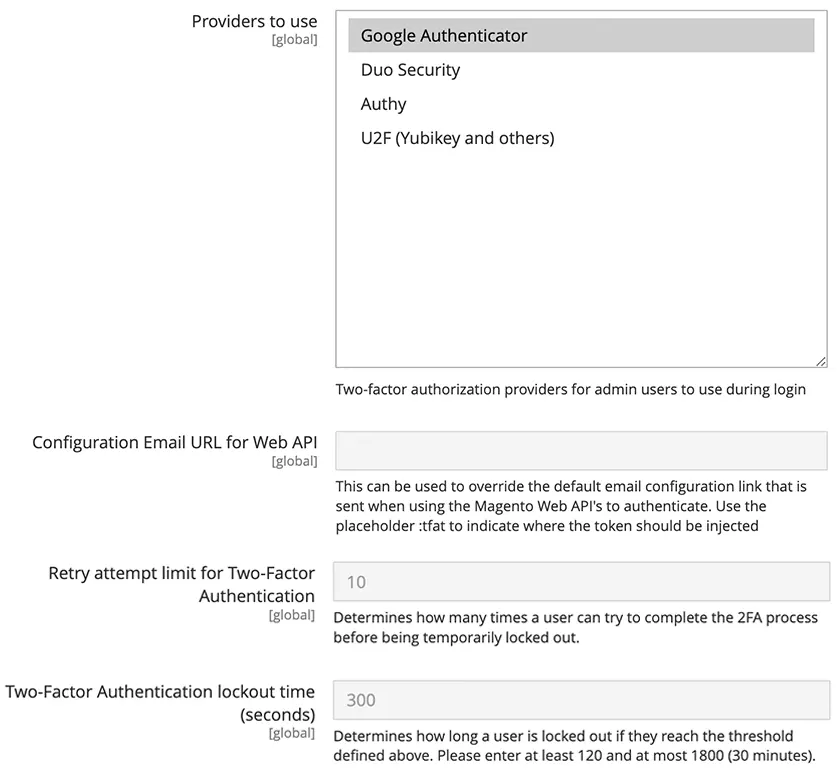
Start with two-factor authentication (2FA). Adobe Commerce 2.4 enables native Admin 2FA by default, adding another verification step to the login process.
For traditional Commerce installations, you can review authentication options under Stores → Settings → Configuration → Security → 2FA. These are the general settings, but full configuration extends beyond them:
Next, strengthen the Admin configuration. Most of the following options are available under Stores → Settings → Configuration:
- Use a non-default Admin URL to reduce exposure to automated attacks against common paths.
- Require strong, unique passwords.
- Limit unsuccessful login attempts.
- Configure sensible administrator session timeouts.
- Enable CAPTCHA or reCAPTCHA where appropriate.
- Review administrator accounts regularly and remove unused access.
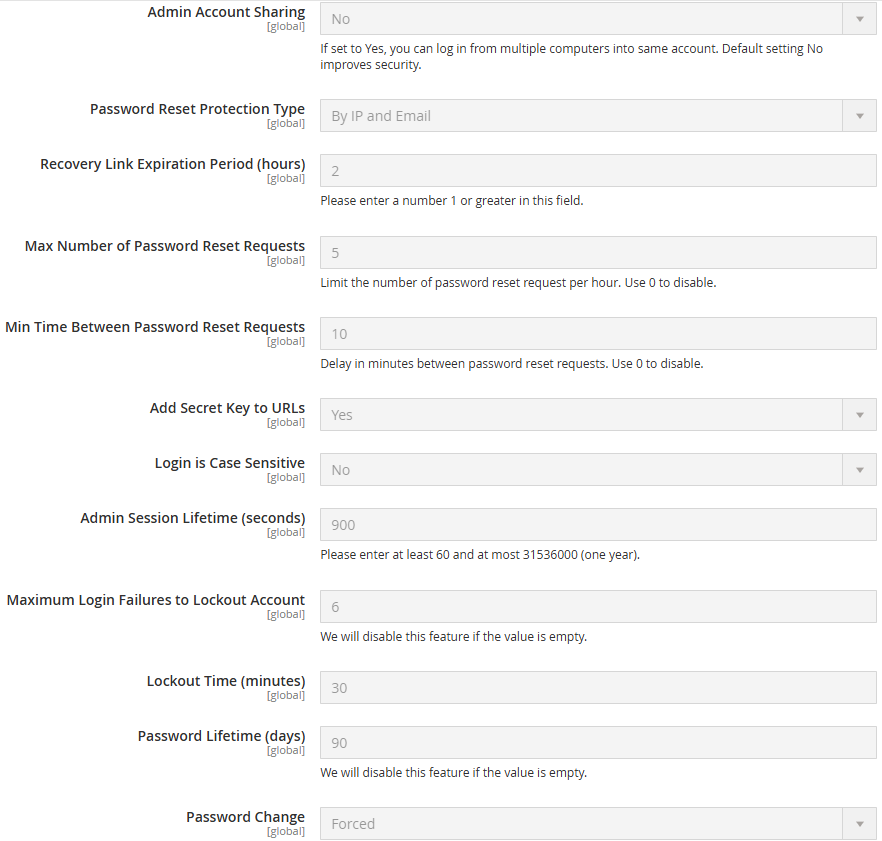
Additional settings are available under Stores → Settings → Configuration → Advanced → Admin → Security. Just look at this list of available options:
A custom Admin URL is useful, but it is not a substitute for authentication and access controls.
Important: If Adobe Identity Management Services (IMS) authentication is enabled, identity verification is handled through Adobe IMS rather than native Commerce 2FA. Apply the appropriate identity policies for your deployment.
3. Follow the Principle of Least Privilege
Not every administrator needs complete access to the store. The principle of least privilege means granting users and integrations only the permissions required to perform their responsibilities. For example, a content editor may need access to CMS pages and product descriptions but not payment settings or integration credentials.
In traditional Adobe Commerce installations, administrators can manage roles under System → Permissions → User Roles. You always start like this:
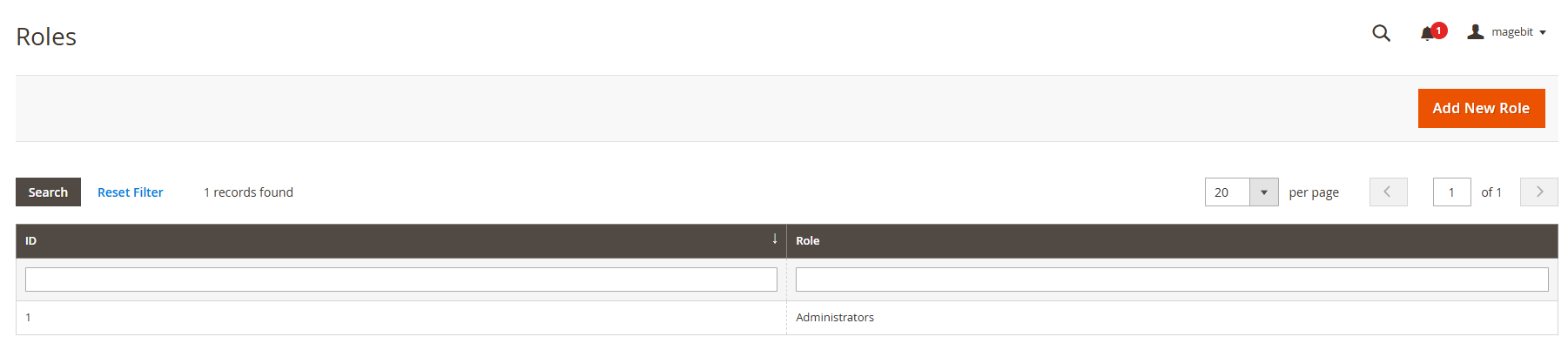
Create dedicated roles for different responsibilities instead of sharing a single account with unrestricted access. Apply the same principle to API integrations. Limit the permissions assigned to connected applications, review tokens periodically, and revoke access when integrations are no longer used. This reduces the potential damage caused by a compromised account or external service.
4. Secure Hosting, Network Access, and Sensitive Configuration
Application security depends on the environment in which Adobe Commerce operates. For on-premises installations, server hardening and infrastructure maintenance are merchant responsibilities. Cloud PaaS customers share these responsibilities with Adobe according to the platform’s security model. So, prioritize the following:
- Use HTTPS with properly configured TLS certificates.
- Restrict database, SSH, and administrative access.
- Configure a web application firewall (WAF) and appropriate rate-limiting controls.
- Avoid exposing configuration files, logs, database dumps, or development tools publicly.
- Store sensitive credentials securely instead of embedding them in source code.
- Use supported versions of PHP, database software, search engines, and other required services.
Adobe Commerce also supports configuration locking to prevent certain sensitive settings from being changed through the Admin interface. For PaaS merchants, review the available CDN and WAF protections before adding custom configurations. SaaS customers should follow the security controls supported by their storefront architecture.
5. Protect Checkout and Customer Data
Checkout security deserves particular attention because attackers often target payment flows and customer information. A common threat is web skimming, where malicious JavaScript attempts to capture sensitive data entered into checkout forms. Adobe Commerce supports Content Security Policy (CSP) configurations that help identify and restrict unauthorized content. However, CSP only provides effective protection when its policies are properly configured and maintained. You should also:
- Review third-party JavaScript loaded on checkout and payment pages.
- Limit unnecessary analytics, advertising, and tracking scripts.
- Use reputable payment gateway integrations.
- Monitor changes to checkout templates and payment components.
- Follow applicable PCI DSS requirements, including those concerning payment-page scripts and tamper detection.
Using a PCI-compliant hosting provider does not automatically make every customized Commerce store PCI compliant.
See Adobe’s for implementation guidance.
6. Audit Third-Party Extensions and Custom Code
Extensions expand Adobe Commerce functionality, but they also increase the application’s attack surface. A vulnerable extension may introduce an exploitable weakness even when the Commerce core is fully updated. Therefore, before installing new modules, evaluate the developer’s security practices, compatibility, update history, and support availability. After installation, maintain an inventory of extensions and monitor their releases. For custom development, introduce code reviews, dependency scanning, vulnerability testing, and controlled deployment procedures.
Remember: Installing an extension from a recognized marketplace does not eliminate the need to maintain and secure it.
7. Secure API Integrations and Encryption Keys
Adobe Commerce frequently connects with ERP systems, PIM platforms, CRMs, payment gateways, shipping providers, and other applications. These integrations exchange business data and often rely on authentication tokens or API credentials. To reduce integration-related risks:
- Use separate credentials for different external systems.
- Grant each integration only the necessary permissions.
- Avoid storing credentials in publicly accessible repositories.
- Rotate exposed or compromised credentials.
- Remove obsolete integrations and unused tokens.
- Monitor unusual API activity and authentication failures.
Encryption key management is equally important. Adobe Commerce uses encryption keys to protect sensitive configuration values. If a key is compromised, simply installing a security patch may not be enough. Depending on the incident, you may also need to rotate integration tokens, payment credentials, and other secrets that could have been exposed.
8. Enable Continuous Security Monitoring
Security reviews should not depend entirely on scheduled maintenance. Adobe provides a free Security Scan Tool that checks supported Adobe Commerce and Magento Open Source websites for known risks and potential malware. Configure recurring scans, review the findings, and investigate detected vulnerabilities. Combine these external checks with application logs, infrastructure monitoring, and periodic code audits. We explain how to configure the tool later in this guide.
9. Maintain Backups and an Incident Response Plan
Since, even well-protected environments can experience security incidents, prepare for unexpected events by maintaining reliable backups and documenting how your team will respond to suspicious activity. Your incident response plan should identify who can investigate alerts, restrict compromised access, preserve evidence, communicate with affected parties, and restore services. Test backup restoration periodically. An untested backup does not guarantee a successful recovery. For additional recommendations, see Adobe’s .
Adobe Commerce Security Patches: Types, Releases, and Installation
Adobe Commerce security patches are updates designed to fix identified vulnerabilities and reduce the risk of exploitation.
Not all patches work the same way, however. In 2026, Adobe uses several mechanisms to deliver security improvements.
Types of Adobe Commerce Security Patches
| Patch Type | Purpose | What Merchants Should Know |
| Security patch release (-pN) | Provides a cumulative security baseline for a supported release line. | Installed through Composer; includes previously released security fixes for that baseline. |
| Monthly isolated security patch | Fixes one or more specific vulnerabilities without a complete version upgrade. | Not cumulative; missing monthly patches must be applied in sequence. |
| Emergency hotfix | Addresses an urgent security issue, such as an actively exploited vulnerability. | May require separate installation outside the regular patch schedule. |
| Cloud Patches for Commerce | Delivers required fixes and cloud-specific changes for PaaS deployments. | Updated through the Cloud toolchain; applicable fixes are applied during deployment. |
| Quality Patches Tool (QPT) | Supplies targeted fixes for quality or compatibility issues. | Not a replacement for security patch releases, although some urgent fixes may use this mechanism. |
Monthly Adobe Commerce Security Patches in 2026
One of the most important developments in Adobe Commerce security is the introduction of monthly isolated security patches. Adobe now provides these patches on Patch Tuesday, the second Tuesday of each month, according to its release schedule. Unlike a complete security patch release, an isolated patch contains only the changes required to address particular vulnerabilities. This approach makes it possible to deliver security fixes without forcing merchants to perform a broader Composer dependency upgrade every month. However, isolated patches have two important requirements:
- First, the installation must use the latest supported -pN security baseline for its release line.
- Second, isolated patches are not cumulative. If your store missed several monthly updates, you must apply the missing patches in the correct sequence.
Adobe’s explains these requirements in detail.
How to Apply Adobe Commerce Security Patches Safely
The installation process depends on the patch type, application version, and deployment environment. For on-premises and PaaS merchants, the general workflow is:
- Identify your installed Commerce version. Check the application version, security patch baseline, and installed components.
- Review the official security bulletin. Determine which vulnerabilities affect your installation and which updates are required.
- Check existing patches. Use Adobe’s Commerce Version Tool where supported to identify installed and missing isolated patches.
- Select the appropriate installation method. On-premises merchants may need to apply dedicated patch files, while PaaS merchants should first check their Cloud Patches for Commerce package.
- Test in staging. Verify checkout, payments, customer authentication, integrations, and other business-critical functions.
- Deploy and verify. Apply the update to production, confirm its status, and monitor the store for unexpected behavior.
For monthly security updates, the Commerce Version Tool (CVT) can identify missing patches and report which vulnerabilities remain unaddressed. It is a reporting utility, not an automatic patch installer.
On Cloud PaaS, avoid manually applying an isolated patch if the same fix is already provided by your Cloud Patches for Commerce package. Duplicate application may cause conflicts.
Also remember that a successful deployment does not necessarily mean a compromised store is clean. If attackers exploited a vulnerability before it was patched, additional incident investigation is required.
Adobe Commerce Security Bulletins: Where to Find Critical Updates
An Adobe Commerce security bulletin is an official Adobe advisory describing vulnerabilities, affected product versions, available fixes, and the urgency of installing them.
Security bulletins help merchants determine whether their stores require immediate action.
Where to Find Adobe Commerce Security Bulletins
Adobe publishes current advisories through the .
You can filter the bulletins by product to locate Adobe Commerce updates.
Older bulletins are also available through the .
In October 2026, Adobe moved its active bulletin publishing system to the Trust Center. Merchants should therefore use the Trust Center for the latest advisories rather than rely exclusively on the historical archive.
How to Read an Adobe Commerce Security Bulletin
Each bulletin provides information relevant to vulnerability management.
| Bulletin Detail | What It Tells You |
| APSB identifier | The unique Adobe security bulletin reference. |
| Publication date | When Adobe released the advisory. |
| Affected versions | Which Adobe Commerce or Magento Open Source releases contain the vulnerability. |
| CVE identifier | The standardized reference for a publicly identified vulnerability. |
| Severity | The technical seriousness of the vulnerability, often expressed through CVSS. |
| Priority rating | How urgently Adobe recommends deploying the update. |
| Solution | The applicable patches, updated versions, or remediation instructions. |
Pay attention to the difference between severity and priority.
A vulnerability’s severity describes its potential technical impact. Adobe’s priority rating helps administrators decide how quickly they should deploy the fix.
Adobe defines three priority levels:
- Priority 1: Act as soon as possible, particularly when exploitation is already occurring or the risk is especially high.
- Priority 2: Act within 30 days.
- Priority 3: Deploy according to the administrator’s assessment and operational requirements.
These recommendations should guide prioritization, but they do not replace an organization’s own risk assessment or regulatory obligations.
Adobe Commerce Security Bulletin Examples From 2026
Two Adobe Commerce security bulletins illustrate why monitoring official updates is essential.
— September 7, 2026. Adobe released an emergency update addressing CVE-2026-75650, a critical vulnerability that could enable arbitrary code execution. Adobe confirmed exploitation in the wild, making immediate remediation particularly important.
— October 13, 2026. Adobe published another security update addressing vulnerabilities involving arbitrary code execution, privilege escalation, file system writes, and security feature bypass.
The October bulletin also included an important warning: its isolated security patch did not include the earlier CVE-2026-75650 hotfix, which had to be applied separately where required.
This is a useful example of why installing the newest monthly patch does not automatically guarantee protection against every previously disclosed vulnerability.
Always verify the complete patch history and follow any additional remediation instructions.
What Is the Adobe Commerce Security Scan Tool?
The Adobe Commerce Security Scan Tool is a free security monitoring service from Adobe that helps merchants identify known vulnerabilities, malware indicators, and configuration risks affecting supported Adobe Commerce and Magento Open Source websites.
According to Adobe’s documentation, the tool can perform more than 21,000 security tests and provide recommendations for addressing detected issues.
It supports:
- Security scans scheduled daily or weekly, plus on-demand scanning.
- Reports containing successful and failed security checks.
- Notifications about scan results and security updates.
- Historical reports for tracking security improvements.
- Recommendations for resolving identified risks.
- Management of investigated false-positive scan failures.
The tool is accessible through a Commerce/Magento account.
Importantly, the Security Scan Tool is designed to help monitor a website’s security posture. It is not a replacement for authenticated code reviews, penetration testing, comprehensive vulnerability assessment, or continuous internal monitoring.
How to Set Up the Adobe Commerce Security Scan Tool
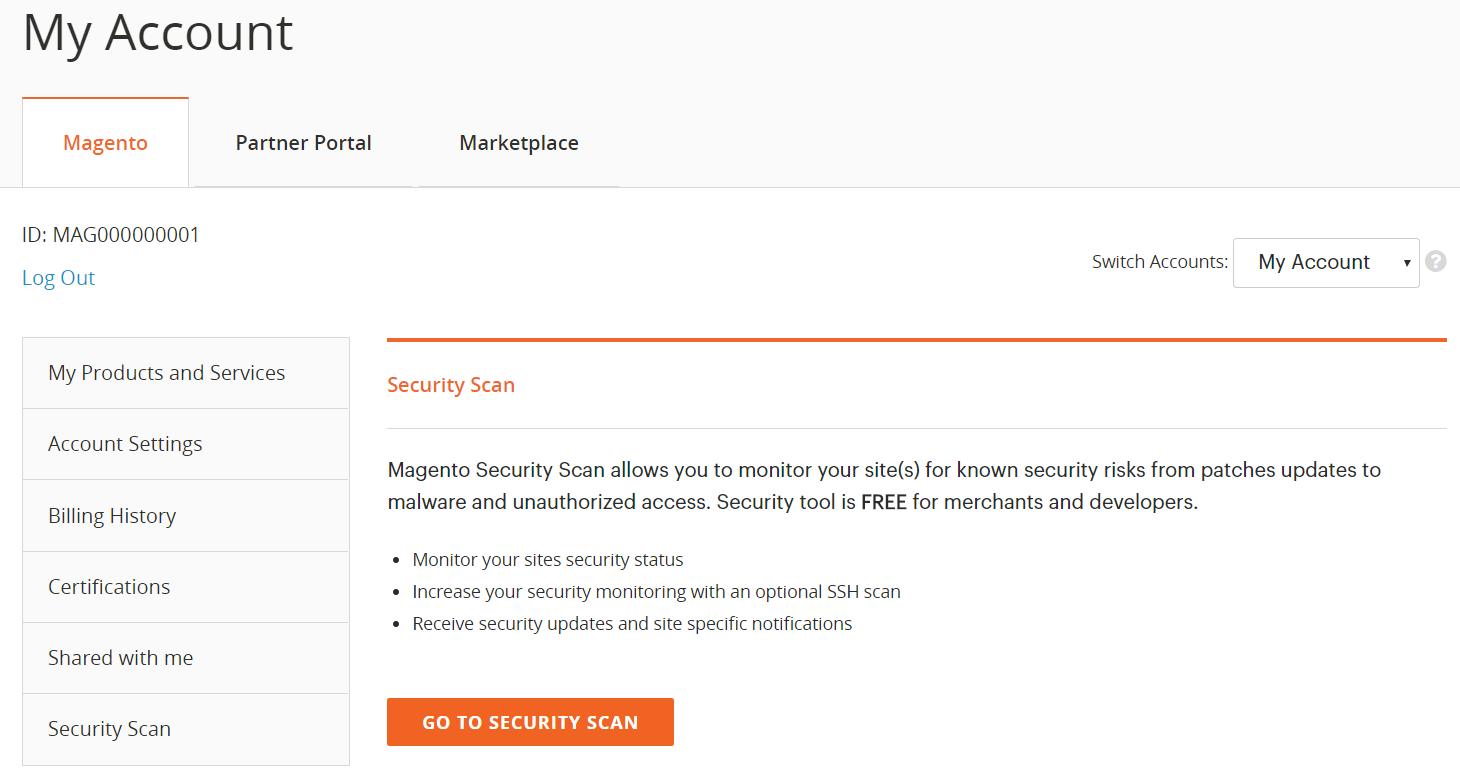
You can configure the tool using the following workflow:
- Sign in to your Commerce/Magento account. Open the Security Scan section and accept the service terms.
- Add your website. Select Add Site and enter the appropriate storefront information.
- Verify domain ownership. Generate a confirmation code and add it to your site using the method specified for your storefront architecture.
- Configure automatic scans. Select a daily or weekly schedule. Adobe recommends weekly scanning as the default.
- Set up notifications. Enter the email address that should receive scan reports and security updates.
For a traditional Adobe Commerce storefront, domain verification involves adding the supplied confirmation code under:
Content → Design → Configuration → HTML Head → Scripts and Style Sheets
The exact verification procedure differs for PWA and Adobe Experience Manager storefronts.
If your installation contains several websites with different domains, configure scanning for each domain separately.
See Adobe’s official for the complete procedure.
What Should You Do After a Security Scan?
A scan is only useful when its findings lead to action.
Start by reviewing failed security checks. Determine whether they indicate missing patches, unsafe configuration, malware, or another potential vulnerability.
Prioritize serious findings, investigate the underlying causes, and implement appropriate fixes.
After remediation, run another scan to verify whether the issue has been resolved.
Some findings may be false positives. Adobe allows investigated scan failures to be marked accordingly, but this should only happen after confirming that the detected risk does not apply or has already been addressed.
Do not treat a clean scan as proof that the website is completely secure. Undetected vulnerabilities may still exist in custom applications, integrations, or internal systems.
What to Do If Your Adobe Commerce Store Is Compromised
If you suspect that attackers have gained access to your Adobe Commerce installation, respond promptly.
The first priority is to contain the incident without destroying information that may be needed for investigation.
Follow this general response procedure:
- Engage your security team. Involve the responsible developers, hosting provider, and incident response specialists.
- Preserve evidence. Retain relevant logs, suspicious files, system records, and other forensic information.
- Determine the scope. Identify potentially compromised administrator accounts, customer information, payment systems, and integrations.
- Contain and remove the threat. Restrict unauthorized access, investigate malicious code, and eliminate the original attack vector.
- Patch and rotate credentials. Apply required security fixes, reset compromised passwords, and replace exposed API tokens, encryption keys, and associated credentials as necessary.
- Restore and monitor. Recover from trusted sources when needed, validate the environment, and monitor for renewed suspicious activity.
For payment-related incidents, involve the appropriate payment providers and compliance specialists. Assess whether customer or regulatory notifications are required.
Adobe also recommends reviewing administrator accounts, changes to application code, database configuration, and suspicious scripts inserted into storefront content.
For further guidance, consult Adobe’s .
Adobe Commerce Security Checklist: What to Monitor and When
Security becomes easier to manage when preventive tasks are incorporated into routine store maintenance.
The following schedule provides a practical starting point.
| Frequency | Recommended Security Activities |
| Daily | Review critical security alerts, authentication anomalies, and suspicious activity. |
| Weekly | Review Security Scan Tool results, investigate failures, and check important system logs. |
| Monthly | Review Adobe security bulletins, applicable patches, extension updates, and access permissions. |
| After security releases | Assess affected versions, apply urgent fixes, verify patch coverage, and test critical functionality. |
| Quarterly | Audit integrations, administrator roles, dependencies, and sensitive configuration. |
| Periodically and after major changes | Test backup restoration, review incident response procedures, and perform broader security assessments. |
Treat this as a baseline rather than a universal compliance schedule. High-risk or highly customized stores may need more frequent checks.
Final Words: Make Adobe Commerce Security an Ongoing Process
Adobe Commerce provides a strong foundation for protecting ecommerce operations, but security depends on how the platform is configured, maintained, and extended.
The most important measures are straightforward: keep the application updated, protect administrator access, audit third-party code, secure integrations, and monitor your store for vulnerabilities.
In 2026, Adobe’s monthly isolated patches make targeted security remediation more accessible. However, merchants must understand how these updates interact with full security releases and emergency hotfixes.
Likewise, the Adobe Commerce Security Scan Tool can help identify potential problems, but it should be part of a broader monitoring strategy rather than the only line of defense.
The objective is not simply to pass a security scan or install the latest patch. It is to build a repeatable process that protects your store, customer data, and business operations as your ecommerce environment evolves.
Adobe Commerce Security FAQ
1. What Are Adobe Commerce Security Best Practices?
The most important Adobe Commerce security best practices include applying security patches, enabling strong administrator authentication, limiting user permissions, protecting APIs, auditing third-party extensions, securing the hosting environment, and monitoring for vulnerabilities. Regular backups and a documented incident response process are also essential.
2. How Often Does Adobe Commerce Release Security Patches?
In 2026, Adobe Commerce provides monthly isolated security patches on the second Tuesday of each month, according to its release schedule. Full security patch releases establish cumulative baselines, while emergency hotfixes may be released outside the regular schedule when urgent vulnerabilities require attention.
3. Where Can I Find the Latest Adobe Commerce Security Bulletin?
You can find current Adobe Commerce security bulletins in the . Select Adobe Commerce from the product filters to review relevant advisories. Each bulletin explains the affected versions, vulnerabilities, priority ratings, and available fixes.
4. What Is the Adobe Commerce Security Scan Tool?
The Adobe Commerce Security Scan Tool is a free service that monitors supported Adobe Commerce and Magento Open Source websites for known security risks, malware indicators, and configuration issues. It offers recurring scans, security reports, notifications, and remediation recommendations.
5. Is the Adobe Commerce Security Scan Tool Free?
Yes. Adobe provides the Security Scan Tool free of charge through the Commerce/Magento account dashboard. Merchants can register their websites, verify domain ownership, schedule scans, and receive security reports without purchasing a separate security scanning subscription.
6. Does Adobe Commerce Automatically Install Security Patches?
It depends on the deployment model. Adobe Commerce as a Cloud Service receives Adobe-managed core application security updates. Adobe Commerce on Cloud Infrastructure (PaaS) requires customers to maintain and deploy their customized application, although supported fixes can be delivered through Cloud Patches for Commerce. On-premises merchants manage patch installation themselves.
7. What Is the Difference Between an Adobe Commerce Security Patch and a Hotfix?
A security patch addresses identified vulnerabilities through a scheduled or targeted release. A hotfix addresses a specific urgent issue and may be distributed separately from the normal release cycle. Merchants should always review Adobe’s installation instructions because emergency hotfixes are not necessarily included in subsequent isolated monthly patches.
8. Is Adobe Commerce Secure Enough for Enterprise Ecommerce?
Adobe Commerce provides enterprise-oriented security capabilities, including administrator authentication, access controls, encryption, security updates, and infrastructure protections that vary by deployment model. However, enterprise security also depends on custom code, integrations, hosting configurations, and operational practices. The platform alone does not guarantee that every deployment is secure or compliant.
9. How Can I Check Whether My Adobe Commerce Store Is Vulnerable?
Start by identifying your installed Commerce version and reviewing applicable Adobe security bulletins. Run the Security Scan Tool to identify known external risks. Use the Commerce Version Tool where supported to verify isolated patch coverage, and supplement these checks with dependency reviews, application monitoring, and security assessments.
10. What Should I Do If Adobe Commerce Has a Critical Security Vulnerability?
Review the official bulletin immediately to determine whether your installation is affected. Follow Adobe’s recommended remediation steps, apply the appropriate patch or hotfix, and verify its installation. If exploitation may have occurred, investigate the environment, preserve relevant evidence, rotate potentially compromised credentials, and follow your incident response plan.
Related posts
 Magento Open Source vs Adobe Commerce in 2027: Features, Costs & Alternatives
 Adobe Commerce Integrations Guide: Native Features, Third-Party Tools & Best Practices in 2026
 Magento 2 Editions in 2027: Magento Open Source, Adobe Commerce & Legacy Alternatives
 Magento 2 B2B Company Explained: A Complete Guide to Setup, Structure, Management & Import for Adobe Commerce
 Magento 2 System Requirements: Complete Guide for Adobe Commerce and Open Source
 How to Choose a Magento 2 Data Import Tool for Magento Open Source & Adobe Commerce in 2026
 Magento 2 (Adobe Commerce) Pricing Explained
 How to Import Customers & Customer Addresses to Magento 2 in 2026: Complete Tutorial & CSV Samples for Adobe Commerce & Magento Open Source