

Shopware 6 Product Import Behavior Control Explained
Today, we explain a brand new time-saver for bulk operations in Shopware 6 — Product Import Behavior Control. Managing large product catalogs in Shopware 6 requires precision. One wrong setting during a bulk import can overwrite hours of manual work, reset custom descriptions, or create thousands of duplicate entries.
This guide explains how to use the Improved Import, Export & Mass Actions app and its three available import modes — Create & Update, Only Update, Only Create — to manage your catalog safely and efficiently.
Table of contents
- The Origin of the Shopware 6 Product Import Behavior Control
- Overview: The Three Modes of Shopware 6 Product Import Behavior Control
- Deep Dive: How Each Product Import Mode Works
- Shopware 6 Product Import Behavior Control: The Logic Matrix for Handling Variants
- The Performance and Identification of Product Import Behavior in Shopware 6
- Final Words: Why Behavior Selection Completely Changes the Shopware 6 Product Import
- Shopware 6 Product Import Behavior FAQ
The Origin of the Shopware 6 Product Import Behavior Control
Unfortunately, the default Shopware import tools do not always offer the granular control needed to separate new product creation from existing product updates. This often forces merchants to perform complex file manipulation before every import.
The Improved Import, Export & Mass Actions app delivers the flexibility every merchant wants. With the specific Product Import Behavior Control feature, you gain strict control over how your data is handled, allowing you to tailor the import logic to your specific workflow — whether you are launching a new collection or simply updating stock levels.
Overview: The Three Modes of Shopware 6 Product Import Behavior Control
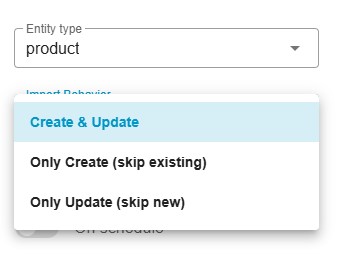
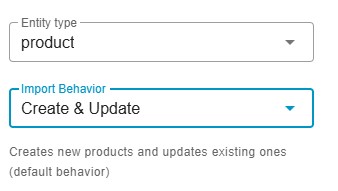
When configuring a Product Import job in the Improved Import, Export & Mass Actions app, you can now select an Import Behavior. This tells the system how to reconcile the data in your file with the data already in your database.
| Mode | Short Definition | Best For |
| Create & Update | Default. Adds new items and updates existing ones. | Full catalog syncs and initial setups. |
| Only Create | Safe Mode. Adds new items; ignores existing ones. | Expanding the catalog without touching current data. |
| Only Update | Maintenance Mode. Updates existing items; ignores new ones. | Bulk price changes or stock level updates. |
Deep Dive: How Each Product Import Mode Works
Option A: Create & Update (Default)
This is the standard synchronization behavior. It ensures your system mirrors the import file exactly.
- Logic:
- If product is missing: The system creates it.
- If product exists: The system overwrites it with new data.
- Variant Handling: New parent products are created with their variants. Existing variants are updated, and new variants are added to existing parents.
- Use Case: Use this for your very first import or when you want the import file to act as the “single source of truth.”
Option B: Only Create (Skip Existing)
This mode is conservative. It protects your existing data from being modified.
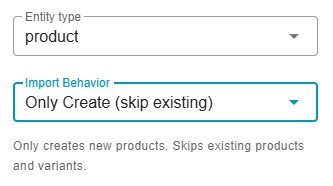
- Logic:
- If product is missing: The system creates it.
- If product exists: The system skips it entirely.
- Use Case: Launching a new product line. You can upload a massive file containing old and new products, and the system will only ingest the new line items, ensuring you don’t accidentally revert a manual price change you made on an old product yesterday.
- Important Warning: This mode checks existence at the Parent Product level. If the Parent Product exists, the system skips it, meaning it will not add new variants (e.g., a new size or color) to that existing parent.
Option C: Only Update (Skip New)
This mode is for maintenance. It ensures your catalog structure remains static while data points change.
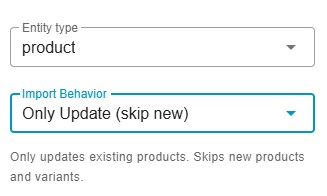
- Logic:
- If product is missing: The system skips it.
- If product exists: The system updates it.
- Use Case: You need to update prices for Black Friday or sync inventory levels from a supplier. If the supplier’s file contains 50 new items you haven’t approved yet, this mode ensures those new items are ignored and only your current stock is updated.
Shopware 6 Product Import Behavior Control: The Logic Matrix for Handling Variants
Understanding how these modes affect Parent/Variant relationships is critical to avoiding data errors.
The system links products based on SKU or EAN/GTIN. Here is how the system reacts to different scenarios:
| Scenario | Create & Update | Only Create | Only Update |
| New Parent Product | Created | Created | Skipped |
| Existing Parent Product | Updated | Skipped | Updated |
| New Variant (Parent exists) | Created (Added to parent) | Skipped (Parent is skipped) | Skipped |
| Existing Variant | Updated | Skipped | Updated |
Key Takeaway: If you are trying to add a new size (Variant) to an existing T-Shirt (Parent), you cannot use “Only Create.” You must use “Create & Update.”
The Performance and Identification of Product Import Behavior in Shopware 6
How Matches Are Found
The system identifies duplicates by checking the unique identifiers in this order:
- Product Number (SKU)
- EAN/GTIN (if configured)
Speed Benefits
Choosing the correct mode can significantly speed up large imports (10,000+ items).
“Only Create” & “Only Update” are generally faster than the default mode.
Why? The system can skip the heavy processing logic for items that don’t match the criteria. For example, in “Only Update,” if a product is not found, the system immediately drops the line item and moves to the next, rather than initializing a creation sequence.
Final Words: Why Behavior Selection Completely Changes the Shopware 6 Product Import
The Shopware 6 Product Import Behavior Control feature transforms the import process from a stressful, high-risk event into a routine, set-and-forget operation.
By turning your import tool from a blunt instrument into a precision scalpel, you gain:
- Workflow Confidence: Upload supplier feeds directly without spending hours manually cleaning the CSV file to remove “old” or “new” products.
- Data Safety: Run hourly stock updates without fear of accidentally creating duplicate “ghost” products or overwriting your marketing team’s custom product descriptions.
- Operational Speed: Because the system intelligently skips data it doesn’t need to process, your bulk updates run faster, keeping your server load low and your store performance high.
Stop fighting with your Shopware 6 data and start managing it.
Shopware 6 Product Import Behavior FAQ
I want to add a new “XL” size to an existing shirt, but I don’t want to change the shirt’s description. Which mode do I use?
You should use Create & Update. However, to prevent overwriting the description, ensure your import file only maps the columns for SKU and Size, or ensure the description column in the file matches the current description. “Only Create” will fail here because the parent shirt already exists.
I have a file with updated prices, but it also contains discontinued products I deleted from my store. If I import it, will those products come back?
Not if you use Only Update. This mode will ignore any products in the file that do not currently exist in your system, so the deleted products will remain deleted.
Which mode is safest for a daily inventory sync?
Only Update is safest for inventory syncs. It ensures that stock levels are adjusted for items you actually sell, without cluttering your database with unapproved new items from your supplier’s feed.
Related posts
 Shopify Product Import Behavior Explained: Take Full Control of Your Product Data
 New in Shopware 6 Product Import: Control Topseller Products with the markAsTopseller Field
 Take Full Control over Product Visibility in Shopware 6: Introducing the ‘Replace Product Sales Channels’ Feature for Import
 How the price_inherited Field Simplifies Variant Pricing Import in Shopware 6
 How to Import Advanced Pricing in Shopware 6 with Product Updates
 How to Import Products to Shopware 6 & Automatically Assign Them to Parent Categories: A Time-Saving Import Feature You Shouldn’t Miss
 How to Import & Export Shopware 6 Advanced Prices as Separate Entity
 How to Change Product Handle During Shopify Import